A Teams alternative for working with clients and partners
Microsoft Teams has three ways to work with external people: external access, guest access and shared channels. What they do, what they require – and how nest54 builds cross-organisation workspaces.
Projects rarely stop at your own company’s boundary. Agencies work with clients, construction firms with architects and subcontractors, law firms with their clients. If you are looking for a Teams alternative for this, start by understanding how Microsoft Teams brings in external people – because there isn’t one way but three, each with different requirements. This article explains them based on Microsoft’s documentation (as of October 2026) and shows how nest54 approaches cross-company collaboration differently.
Three ways to include external people in Microsoft Teams
External access: chat and calls
With external access, your users can find, chat with and call people in other organisations who use Teams, and invite them to meetings. It is enabled by default. External users get no access to Teams resources, however, and files can’t be shared this way. People can only be found by their email or SIP address.
Guest access: external people as team members
With guest access, you invite a person into a team. They get a guest account (Microsoft Entra B2B) in your directory and can chat, take part in channels, join meetings and collaborate on files. Anyone with a business or consumer email address can be a guest; according to Microsoft, no extra Microsoft 365 licence is required. Keep in mind:
- People who already use Teams in another organisation have to switch organisations in Teams to work with you.
- Guests deliberately have fewer rights: for example, they can’t create meetings, have no OneDrive storage and can only attach files in channel posts (guest experience).
- According to Microsoft, it can take up to 12 hours after being added before a guest can access the team.
- When a guest leaves the team, the guest account stays in your directory until an administrator removes it.
Shared channels: tenant-to-tenant collaboration
Shared channels use Microsoft Entra B2B direct connect. External participants stay in their own organisation, need no guest account and don’t have to switch; however, they only see that one channel, not the rest of the team. Requirements according to Microsoft Entra:
- Both organisations use Microsoft Entra ID.
- B2B direct connect is blocked by default for all external organisations. Both sides must enable it for each other in their cross-tenant access settings.
- Guests can’t be added to shared channels.
| Option | Files | Account at the host | Requirement on the other side |
|---|---|---|---|
| External access | no | no | Microsoft identity |
| Guest access | yes | guest account in your directory | email address |
| Shared channel | yes, within the channel | no | Entra ID and approval by their admins |
What this means in practice
For day-to-day project work, this leads to a few typical situations:
- The client doesn’t use Microsoft 365: for working on files together, guest access is the only option, because shared channels require Microsoft Entra ID on both sides.
- The partner uses Microsoft 365: shared channels are convenient, but both IT departments need to coordinate before the first channel can be shared.
- Many projects, many guests: guest accounts pile up in your directory. Microsoft offers access reviews in Entra ID for this, but someone still has to run them.
- Who holds the data? Files in a shared channel live in a SharePoint site of the host organisation, and its policies apply. According to Microsoft, there are no audit logs in the external person’s home organisation for their activity in the other organisation’s channel.
How nest54 handles collaboration across company lines
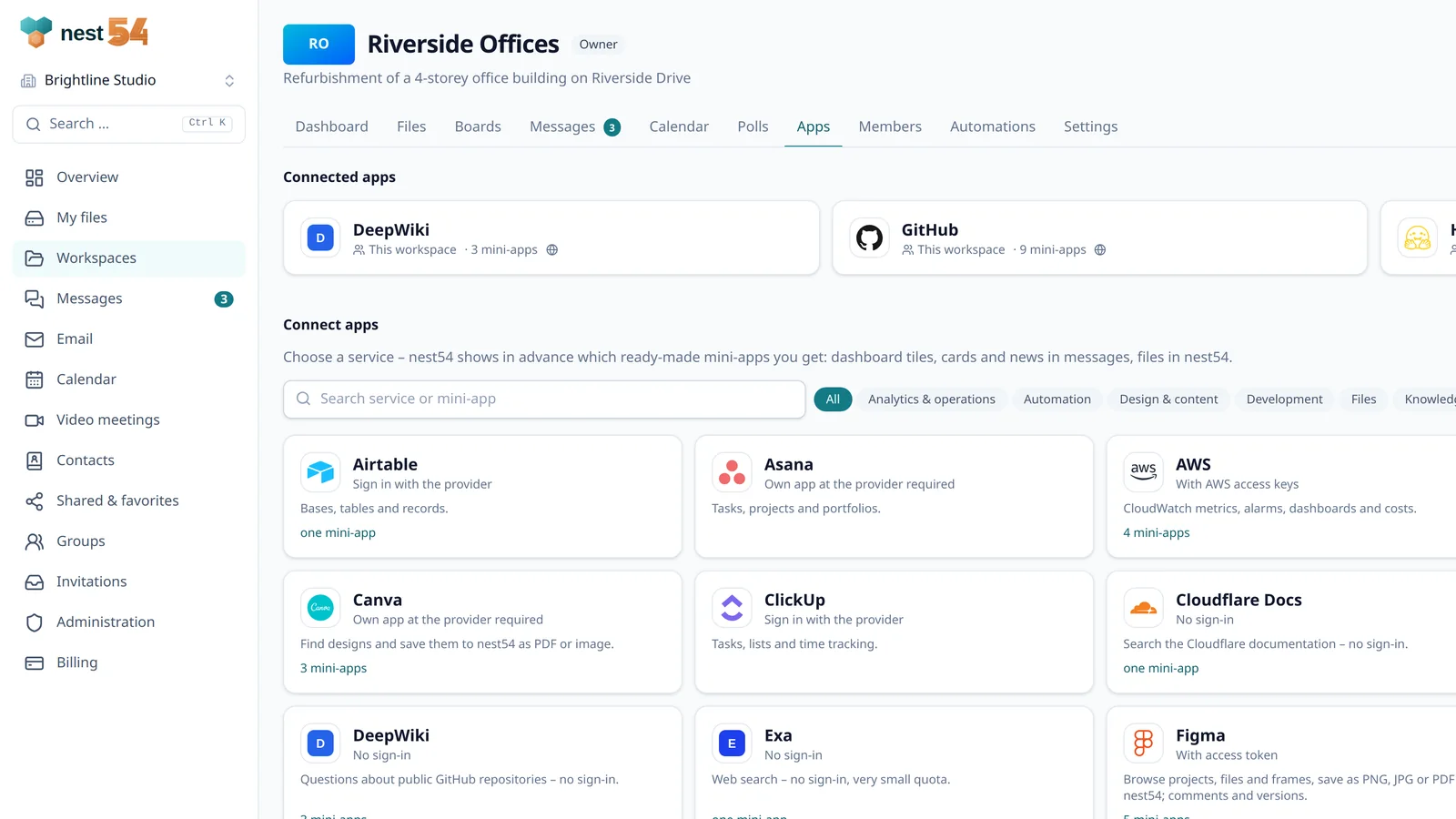
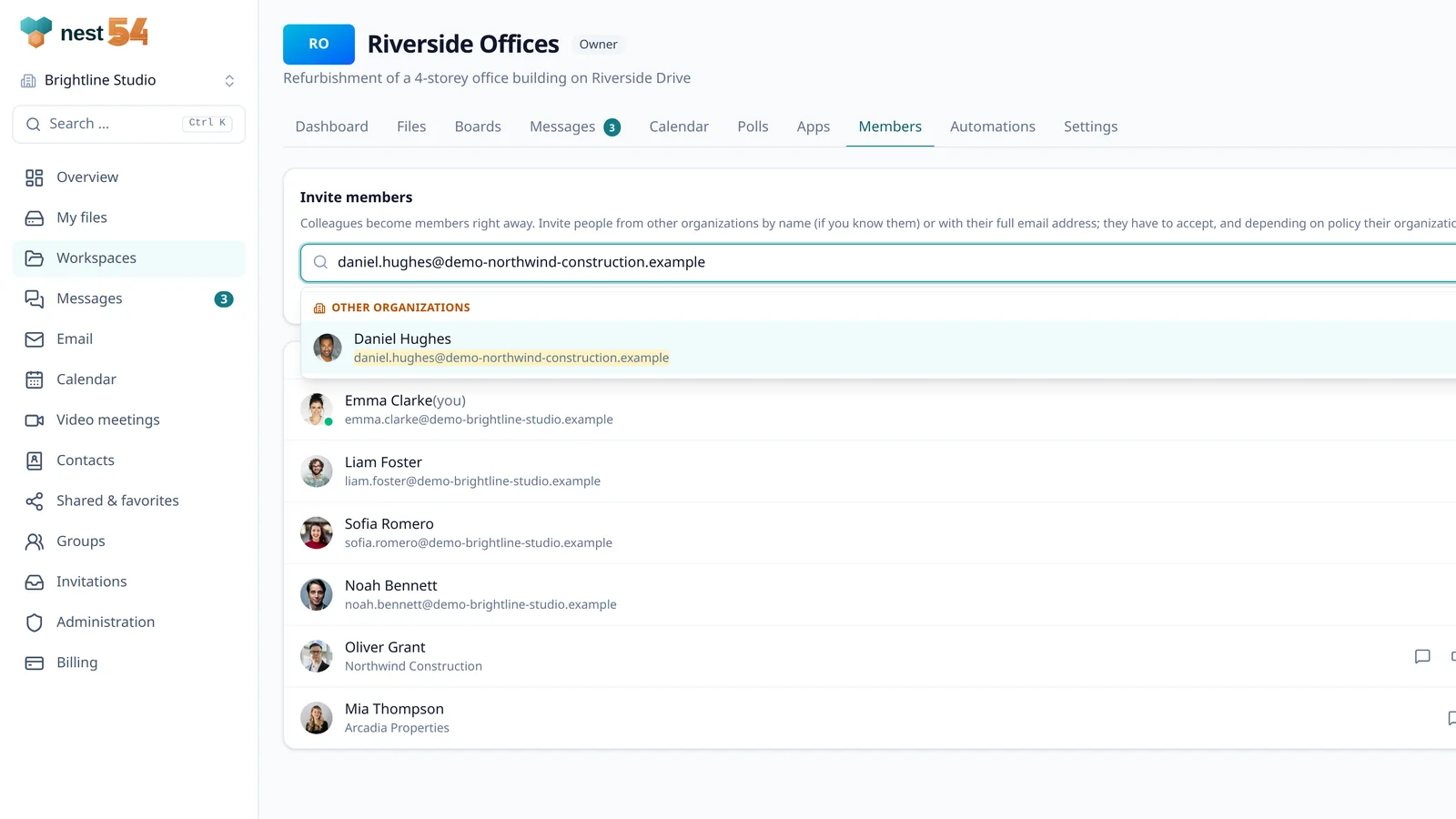
nest54 was built from day one for projects involving several organisations. Every company has its own organisation with its own accounts, policies and encryption key. Work happens in workspaces with files, chat, boards, calendar and polls. The image above shows a person from another organisation being invited into a workspace.
- Host principle: data, storage and keys belong to the organisation that created the workspace. When the collaboration ends, the content stays with the host.
- Two-step approval: an invitation is first checked against the invited organisation’s policy, then the person accepts it. Each organisation decides whether it collaborates across organisations with everyone, only with partners, or not at all.
- Own account instead of a guest account: partners join with the account of their own organisation. Instead of individuals, a partner can add one of its own groups; the partner alone controls who is in it.
- Guests for people without their own organisation: clients join as read-only guests. For one-off exchanges there are share links with password, expiry date and file drop.
- Data-minimal: external people can only be found if they allow it; email addresses of other companies stay hidden. In chat, a label shows which organisation someone belongs to.
- Policies per workspace: for example, mandatory two-factor sign-in or no public links. Internal fields such as budget are visible only to members of your own organisation.
Neither side needs Microsoft Entra ID for this. People without an account join video meetings through a guest link with a waiting room, in the browser and without installing anything. When a guest account is enough and when a full account makes more sense is covered in Guest access or own account?
Where Teams is stronger
A fair view belongs here too:
- If both sides already use Microsoft 365, external participants use shared channels in the Teams client they know, without another tool.
- Shared channels inherit the host organisation’s compliance policies, such as data loss prevention and retention, and Microsoft lists a wide range of supported apps.
- Teams offers calling features and mobile apps. nest54 runs in the browser; an installable app with push notifications is planned.
With nest54, on the other hand, your partners get one more tool – even if it runs in the browser and needs no installation.
When nest54 is the right Teams alternative
nest54 fits when your projects regularly involve several organisations, not everyone uses Microsoft 365, and it should be clear who owns the project data. Because organisations bring their own policies, you don’t have to manage partners as guests in your directory. If you want to keep Outlook, you can connect your Microsoft account; the checks to make before switching are covered in A European Microsoft 365 alternative. All features for working with external people are listed under Features.
Frequently asked questions
What is the difference between guest access and shared channels in Teams?
With guest access, the external person gets a guest account in your directory and becomes a member of a team. With shared channels, they stay in their own organisation and see only that one channel; this requires both organisations to use Microsoft Entra ID and to enable B2B direct connect for each other.
Do partners need Microsoft 365 to use nest54?
No. Partners join with the account of their own nest54 organisation, and clients without their own organisation join as read-only guests. People without an account can join video meetings through a guest link.
Who owns the data in a cross-organisation workspace?
The organisation that created the workspace. It provides storage and keys, and when the collaboration ends, the content stays with it.
Sources
- Use guest access and external access to collaborate with people outside your organization – Microsoft Learn
- Guest access in Microsoft Teams – Microsoft Learn
- Guest experience in Microsoft Teams – Microsoft Learn
- Shared channels in Microsoft Teams – Microsoft Learn
- B2B direct connect overview – Microsoft Learn (Microsoft Entra External ID)